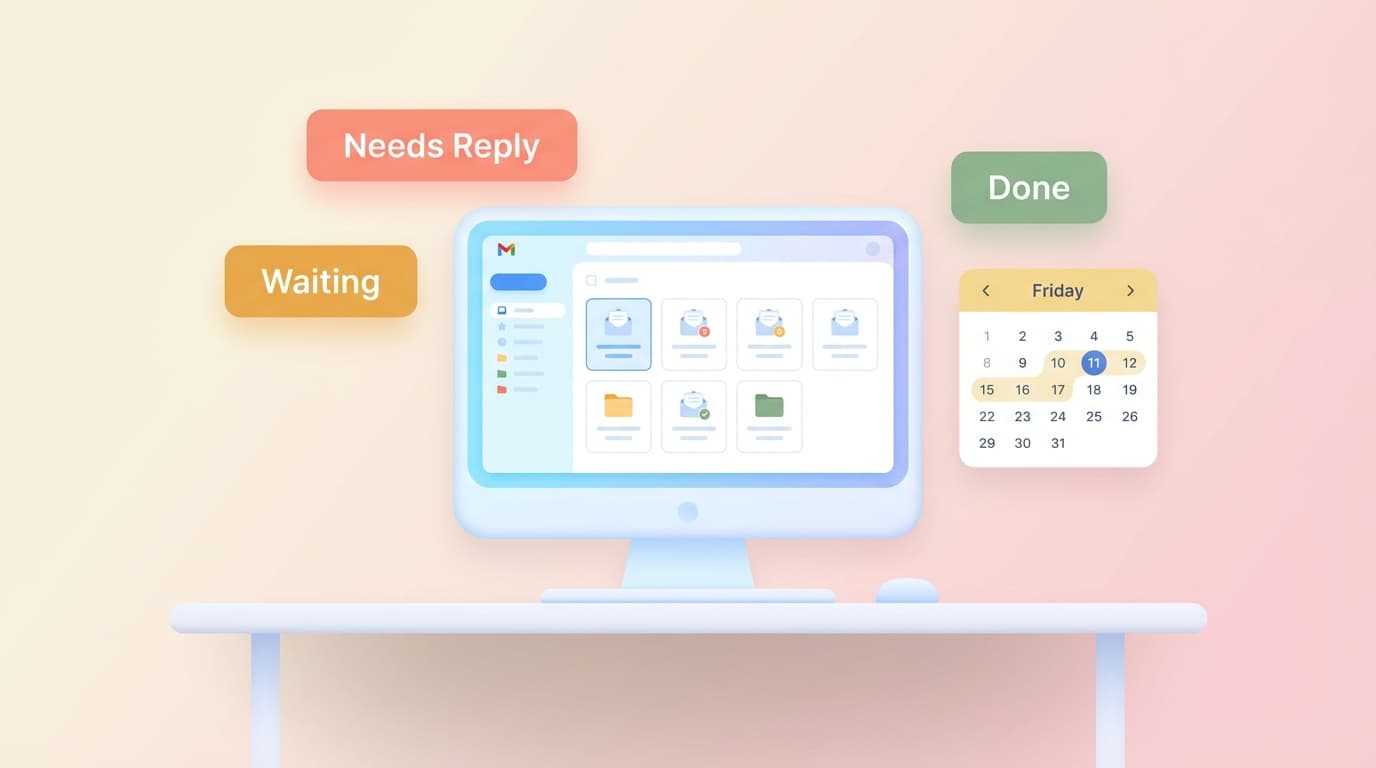
The Weekly Inbox Cleanup Routine That Prevents Backlogs
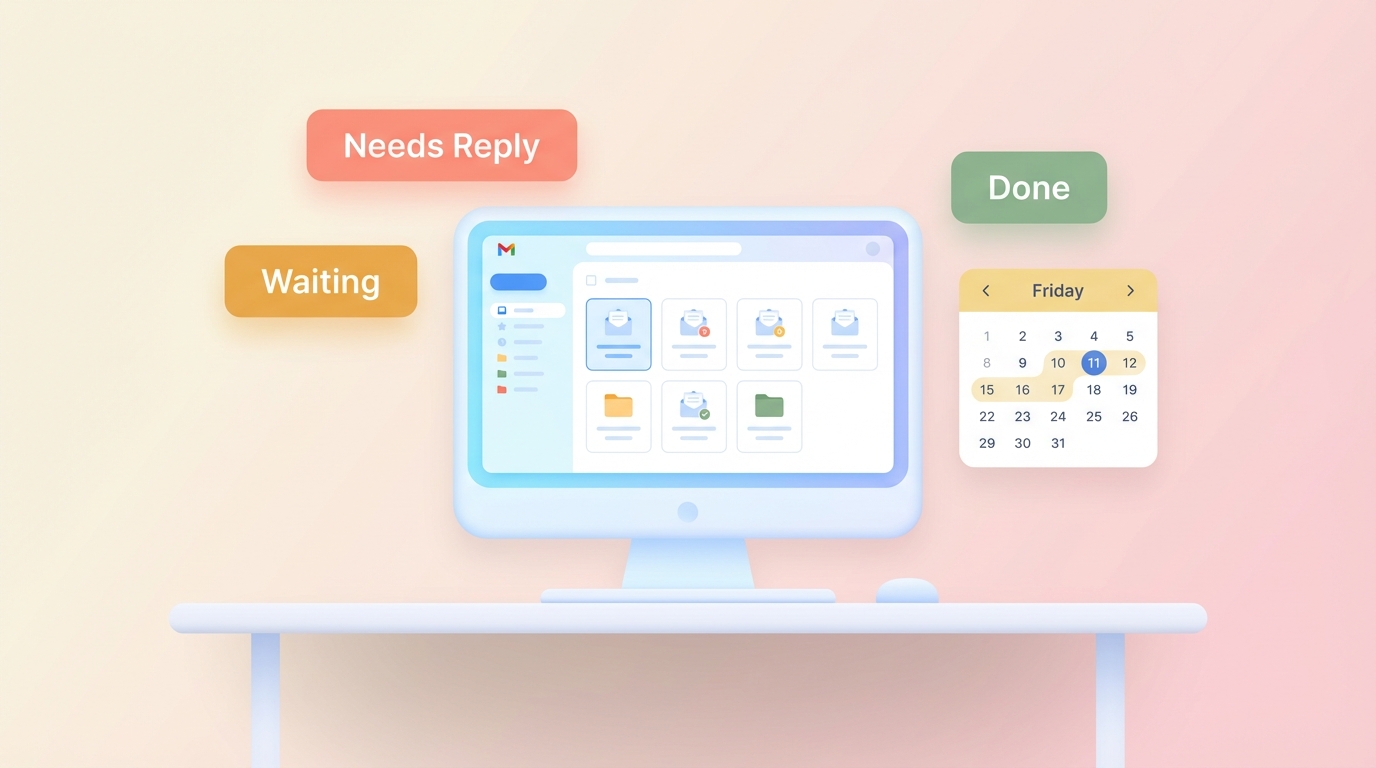
TL;DR
- Weekly review beats reactive daily checking - it's a system, not a catch-up session
- A 25-minute Friday routine keeps your inbox under control without inbox zero heroics
- Review drafts, check waiting threads, scan unresolved items, clear noise, set one priority
- Ignoring the right things (newsletters, notifications, CCs) is part of the system
- The goal isn't zero emails - it's control and no backlog
Why Weekly Beats Daily Inbox Checking
Most people treat email as a constant interruption. They check throughout the day, reply to whatever lands at the top, and hope the rest will sort itself out. It doesn't.
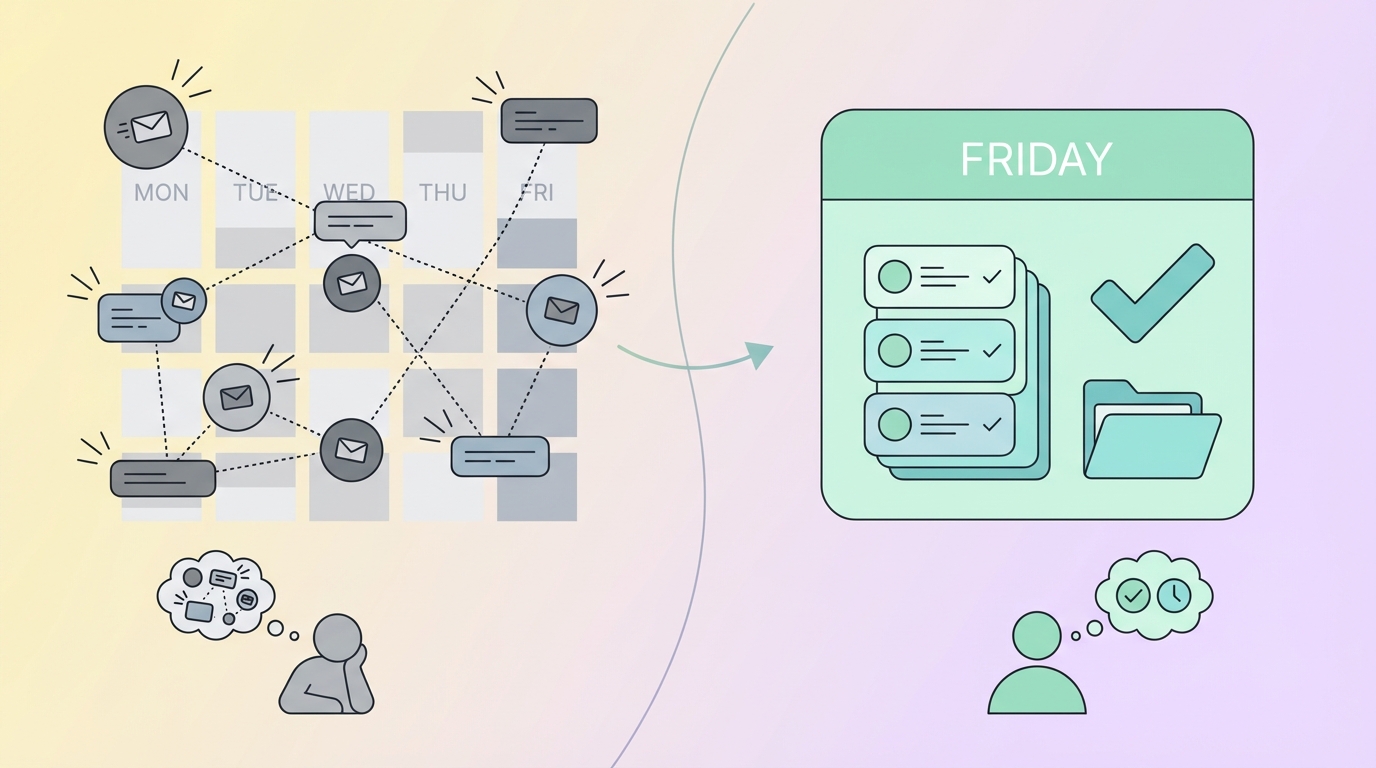
Daily inbox checking is reactive. You respond to urgency, not importance. You lose track of threads waiting for replies. You re-read the same emails multiple times without deciding what to do. And by Friday afternoon, you have a backlog.
A weekly inbox routine flips the script. Instead of firefighting all week, you dedicate one focused block - Friday afternoon, 25 minutes - to review what's been prepared, follow up on what's pending, and clear what doesn't matter.
The difference is structural. Daily checking keeps you in reaction mode. Weekly review is a system.
Take Sarah, a product manager who used to check email 20+ times a day. Every ping felt urgent. By Wednesday, her inbox had 40 threads she "needed to get to." By Friday, it was 60.
She switched to a Friday-only review. Her email agent prepared drafts throughout the week. On Friday, she opened her inbox to 12 drafts ready for approval, 5 threads marked "waiting for reply," and 20 items already filtered as noise. 25 minutes later, she was done. No backlog. No guilt.
That's the power of batching.
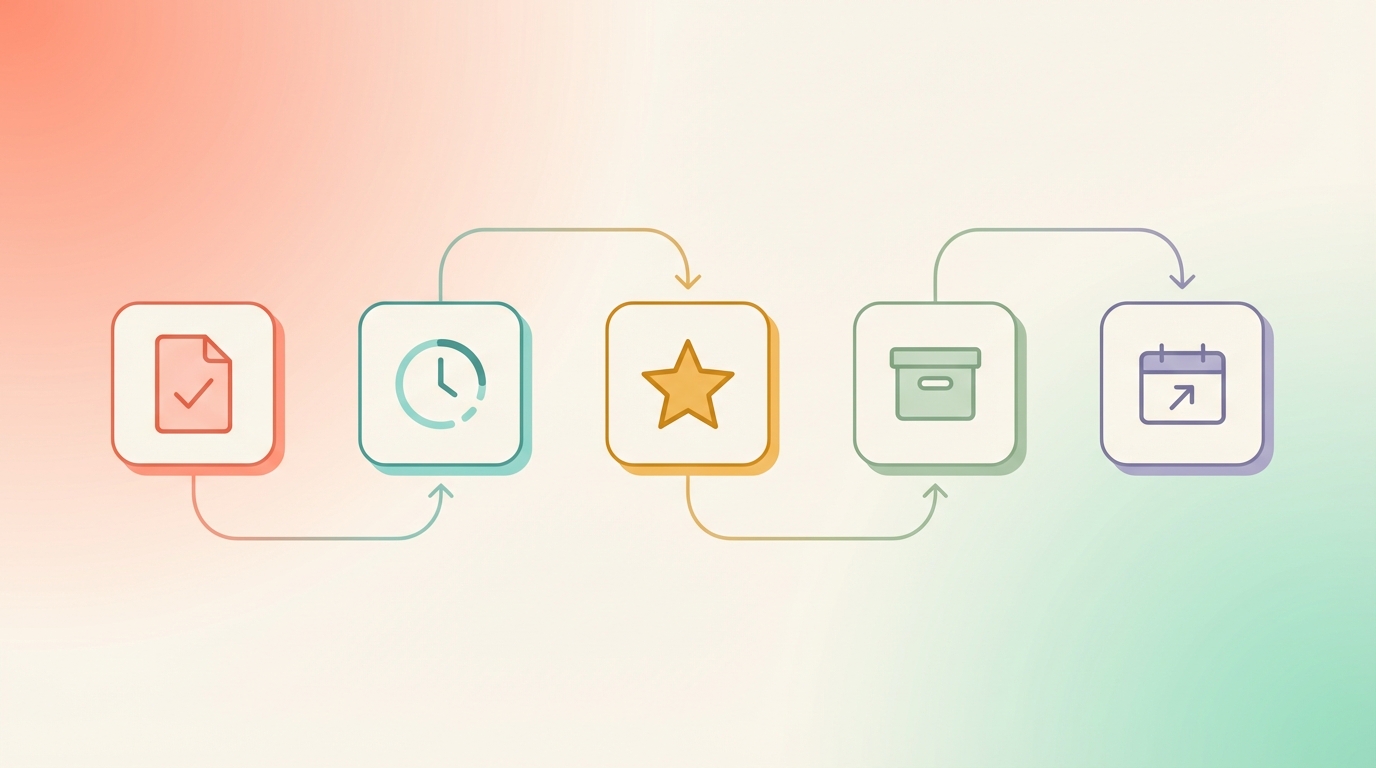
The Routine: 5 Steps, 25 Minutes
Here's the exact routine. Do this every Friday afternoon. Set a timer. Don't let it expand into an hour.
Step 1: Review Drafts Ready for Approval (10 minutes)
Your email agent has been working all week. Drafts are waiting in your inbox - replies, follow-ups, and confirmations.
Go through each draft. You have three options:
- Approve - Looks good, send it.
- Edit - Tweak tone or add context, then send.
- Delete - No longer relevant or someone else handled it.
Most drafts take 10 seconds to approve. A few need a sentence added. One or two get deleted because the situation changed. You're not writing from scratch. You're reviewing work that's already done.
Step 2: Check "Waiting" Threads (5 minutes)
These are emails you sent that haven't received a reply. Your system tracks them automatically.
For each thread, decide:
- Nudge - Send a follow-up (often a draft is already prepared after 3 days).
- Close - No longer matters, archive it.
- Escalate - Needs a phone call or Slack message instead.
This step prevents silent drops. You're not guessing who owes you a reply. The system shows you.
Step 3: Scan Unresolved Threads (5 minutes)
These are threads that don't have drafts yet - usually because they require a decision you haven't made, input from someone else, or deeper thought.
For each:
- Schedule time - Block 20 minutes next Tuesday to draft a proper response.
- Delegate - Forward to the right person with clear instructions.
- Archive - Turns out it wasn't important.
Don't try to handle these now. Just triage them.
Step 4: Clear Noise (3 minutes)
Newsletters you haven't opened in weeks. Notifications from tools you already checked. CCs where someone else is handling it. Automated receipts.
Select all. Archive. Done.
This isn't ruthless - it's realistic. If you didn't need it all week, you don't need it now.
Step 5: Set One Priority for Next Week (2 minutes)
Look at your calendar. What's the one email-related task that matters most next week?
Examples:
- "Follow up with the vendor on the proposal by Tuesday."
- "Draft Q1 update for the board by Wednesday."
- "Schedule 1:1s with the new hires by end of week."
Write it down. Make it your anchor. Everything else is secondary.
How Jace Supports the Routine
This routine works because the preparation happens in the background.
Jace monitors your inbox throughout the week. When an email arrives labeled "Needs Reply," it reads the full thread (including attachments like PDFs or documents) and prepares a draft. The draft is waiting when you sit down Friday afternoon.
The "Waiting" label tracks threads where you sent something and haven't received a reply yet. After 3 days, Jace drafts a follow-up nudge. You don't have to remember who you're waiting on - the system does.
Nothing sends automatically. Every draft requires your approval. Jace works while you're in meetings, offline, or focused on other work. But you stay in control.
It's a review-first workflow, not autopilot.
What You Can Safely Ignore
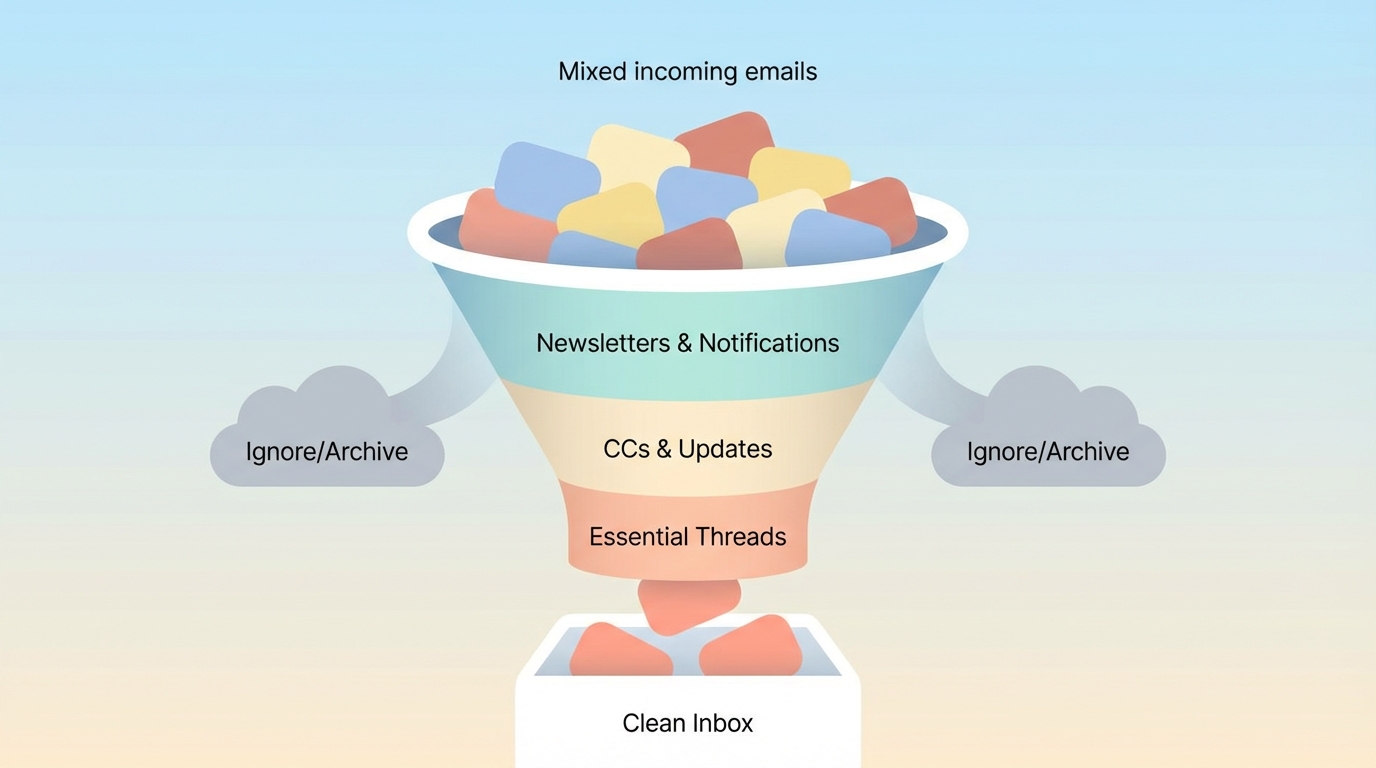
Part of a good weekly inbox cleanup is knowing what not to review.
Newsletters - If you didn't open it this week, you won't open it next week. Unsubscribe or set up a filter to auto-archive.
Tool notifications - Jira updates, Slack digests, calendar confirmations. You already saw these in the app. No need to process them again in email.
CCs where you're not the decision-maker - Someone else is handling it. You're copied for visibility. Archive unless you see something wrong.
Threads already closed - If someone replied "Thanks, all set," archive it. Don't re-read completed conversations.
Old unresolved threads (30+ days) - If it mattered, someone would have followed up by now. Archive or delete.
The goal of weekly cleanup isn't to touch every email. It's to handle what matters and ignore the rest without guilt.
Common Mistakes in Weekly Cleanup
Mistake #1: Treating it like inbox zero Don't try to clear every email. The goal is no backlog - meaning no threads that need your action are stuck unresolved.
Instead, focus on open loops: drafts to approve, threads waiting for replies, unresolved asks. Everything else can stay.
Mistake #2: Reviewing every email instead of just open threads If there's no draft, no "waiting" label, and no unresolved decision, skip it. Most of your inbox is FYI or already handled.
Instead, filter your view to only show threads that need action.
Mistake #3: Skipping the "Waiting" check People forget this step because nothing looks urgent. But silent drops kill momentum. A vendor who never replied. A client who went quiet. These matter.
Instead, make "check waiting threads" non-negotiable. It takes 5 minutes.
Mistake #4: Not having a fixed time block "I'll clean my inbox whenever I get a chance" means it never happens. By Friday, you're too burned out to care.
Instead, block Friday 4:00-4:30 PM. Treat it like a meeting with yourself.
Mistake #5: Re-reading threads instead of trusting the draft If your system prepared a draft based on the full thread, you don't need to re-read 15 emails. Just review the draft.
Instead, scan the context summary and decide: approve, edit, or delete.
FAQs
How often should I clean my inbox? Once a week is enough for most people. Daily inbox checking creates reactive behavior. Weekly review is systematic and prevents backlogs from forming.
What's the difference between inbox cleanup and inbox zero? Inbox zero is clearing every email to zero unread. Inbox cleanup is resolving open threads and preventing backlog. You don't need zero emails - you need zero unresolved tasks.
How do I track emails waiting for a reply? Use a "Waiting" label for threads where you sent something and are waiting for a response. Review this list weekly and follow up where needed. An email agent like Jace can track these automatically and draft follow-ups after 3 days.
How long should a weekly inbox review take? 25-30 minutes if you follow the 5-step routine. It should not expand into an hour. Set a timer and stick to it.
Should I process email daily or weekly? Check for urgent items daily if needed (5 minutes, scan only). Do the full review weekly. Batch processing saves time and prevents decision fatigue.
How do I stop email backlog from building up? Use a weekly routine. Have drafts prepared automatically. Track threads waiting for replies. Ignore newsletters and notifications. Don't aim for inbox zero - aim for no unresolved threads.
What emails can I ignore in my weekly review? Newsletters you didn't open, tool notifications you already saw, CCs where you're not the decision-maker, closed threads, and anything older than 30 days with no follow-up.
How do I handle emails that need someone else's input? Mark them as blocked or escalated. Forward with clear instructions or schedule a meeting to discuss. Don't let them sit in your inbox waiting for a decision you can't make alone.
What if I get too many emails to review in 25 minutes? You're not reviewing every email - only open threads. Filter out noise first (newsletters, notifications, CCs). Focus on drafts, waiting threads, and unresolved asks. Everything else can be archived or ignored.
Do I need special tools to do a weekly inbox cleanup? No, but automation helps. An email agent that drafts replies and tracks waiting threads cuts your review time in half. You spend time approving, not typing.
The Goal Isn't Zero - It's Control
Email backlogs form when you try to stay on top of everything, all the time. A weekly routine flips that. You process in batches. You trust the system to prepare drafts while you're busy with real work. You review once, decide fast, and move on.
The goal isn't an empty inbox. It's knowing exactly what needs your attention and having the tools ready to handle it.
Ready to stop reacting to email and start reviewing it on your terms? Try Jace and see how a review-first workflow prevents backlogs before they start.