The “Waiting” Label: How Follow-Ups Actually Close Loops (Without Manual Chasing)
TL;DR (At-a-glance)
- The Problem: Sent emails often become "open loops" that require manual tracking and mental energy to remember to nudge.
- The Solution: A dedicated "Waiting" label that signals to your inbox agent which threads need a safety net.
- The Mechanism: An opt-in, label-based system that prepares a follow-up draft after 3 days of silence.
- Review-First: No emails are sent automatically; you approve, edit, or discard every draft in the Jace UI.
- Who It’s For: Solo founders and micro-team leads managing high-stakes sales, vendor, and hiring threads.
The Real Inbox Problem
It is 8:15 AM on a Tuesday. You open your inbox, not to see what has arrived, but to remember what hasn't.
You sent a pricing proposal to a promising lead on Friday. No word. You sent an invoice to a vendor with NET-30 terms that are now NET-2. No word. You confirmed an interview time with a developer candidate. Still no calendar invite.
These are "open loops." Individually, they are small. Collectively, they create a heavy layer of email overload. You aren't just managing messages; you are managing a mental inventory of people who owe you a response. Most founders solve this by "flagging" emails or leaving them unread, which only adds to the visual clutter. The bottleneck isn't the writing, it's the remembering.
The One-Mechanism Thesis
The Waiting label is a simple mechanism to close loops without manual chasing, because it turns “waiting” into a reviewable follow-up draft. By applying a single label, you offload the cognitive burden of tracking the calendar to an agent that only surfaces the thread when it is time to act.
What the Waiting Label Is (and Is Not)
| Is | Isn't | Best for | Not for | What you control |
|---|---|---|---|---|
| A signal for follow-up | A mass-marketing tool | High-value 1:1 threads | Newsletters or FYI CCs | Opt-in status & final text |
| Review-first posture | An "auto-responder" | Sales, Hiring, Vendors | Internal Slack-like chats | Approval/Discard decision |
| Label-based trigger | A folder search tool | Attachments & PDFs | Encrypted/Scanned files | Syncing to Drafts folder |
How It Works in Jace (Step-by-Step)
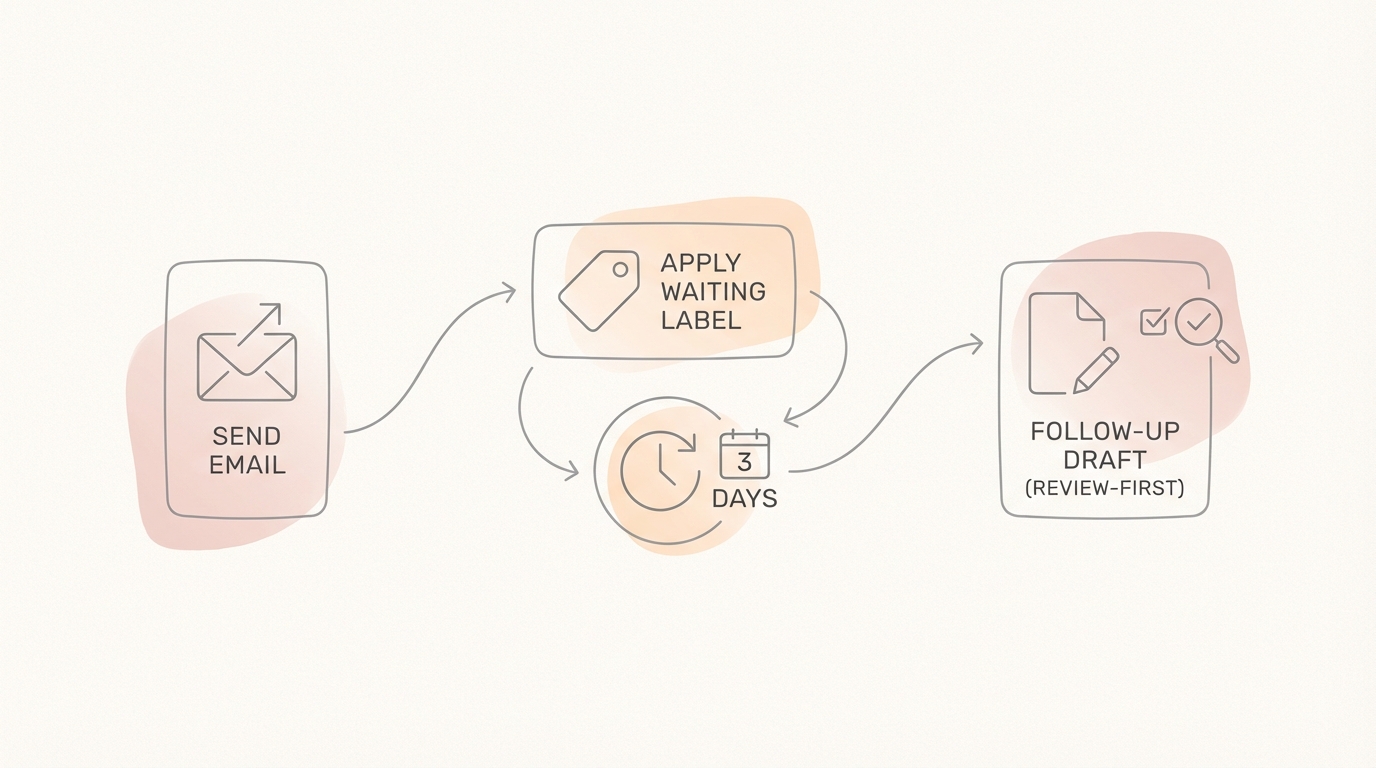
Jace doesn't replace your inbox; it sits on top of it to handle the operational heavy lifting. Here is how the loop closes:
- Create the Label: You create a label named "Waiting" (or similar) directly in Gmail or Outlook.
- Sync: Jace imports your labels and folders. This sync typically happens every 24 hours.
- The Trigger: When you send an email and apply the "Waiting" label, Jace notes the timestamp.
- The 3-Day Window: If no reply is received within three days, Jace uses the thread context and any attachments (like PDFs or Docs) to write a follow-up draft.
- Review-First: The draft appears in your Jace UI. It is never sent automatically. You have full control to edit the tone, change the details, or discard it if the follow-up is no longer needed.
- Optional Sync: If enabled in your Advanced Settings, these drafts can also sync directly into your native Gmail or Outlook Drafts folder.
Setup Checklist
- Open your Gmail or Outlook settings.
- Create a new label/folder titled "Waiting".
- Log into Jace and ensure your labels have synced (check Settings > Labels).
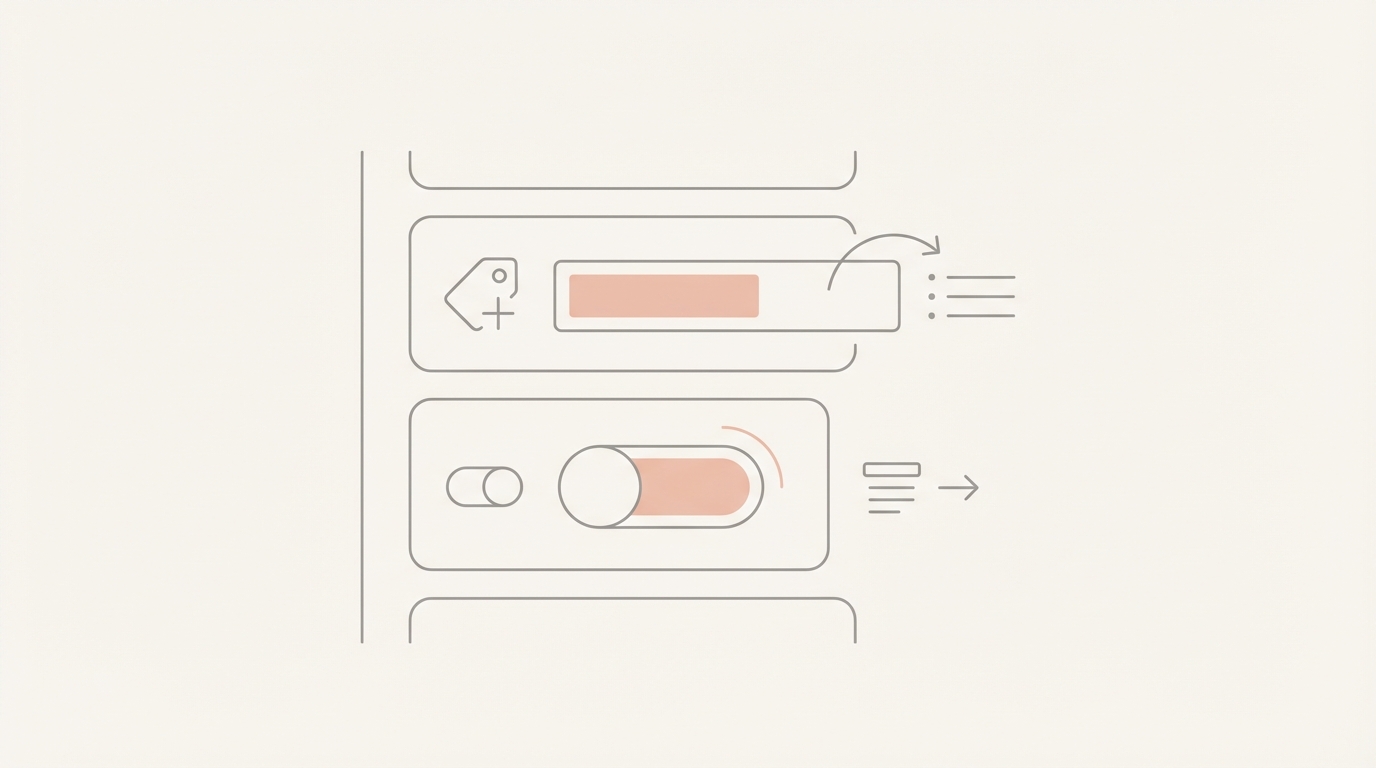
- Navigate to Advanced Settings in Jace.
- Enable the toggle for “Automatic follow-up drafts”.
- Confirm the opt-in for label-based drafting.
- (Optional) Enable "Sync drafts to provider" if you want to send them from your mobile mail app.
- Send a test email to a colleague, apply the "Waiting" label, and wait for the 3-day trigger.
Common Mistakes
- Expecting Retroactive Action: Jace rules and triggers are behavior-only; they do not apply to emails sent before the label was created and synced.
- Assuming Auto-Stop: While Jace reads thread context, the 3-day draft is a safety net. Always review the draft to ensure the context hasn't changed via another channel (like a phone call).
Three Founder Workflows
1. Sales Proposal + Pricing PDF
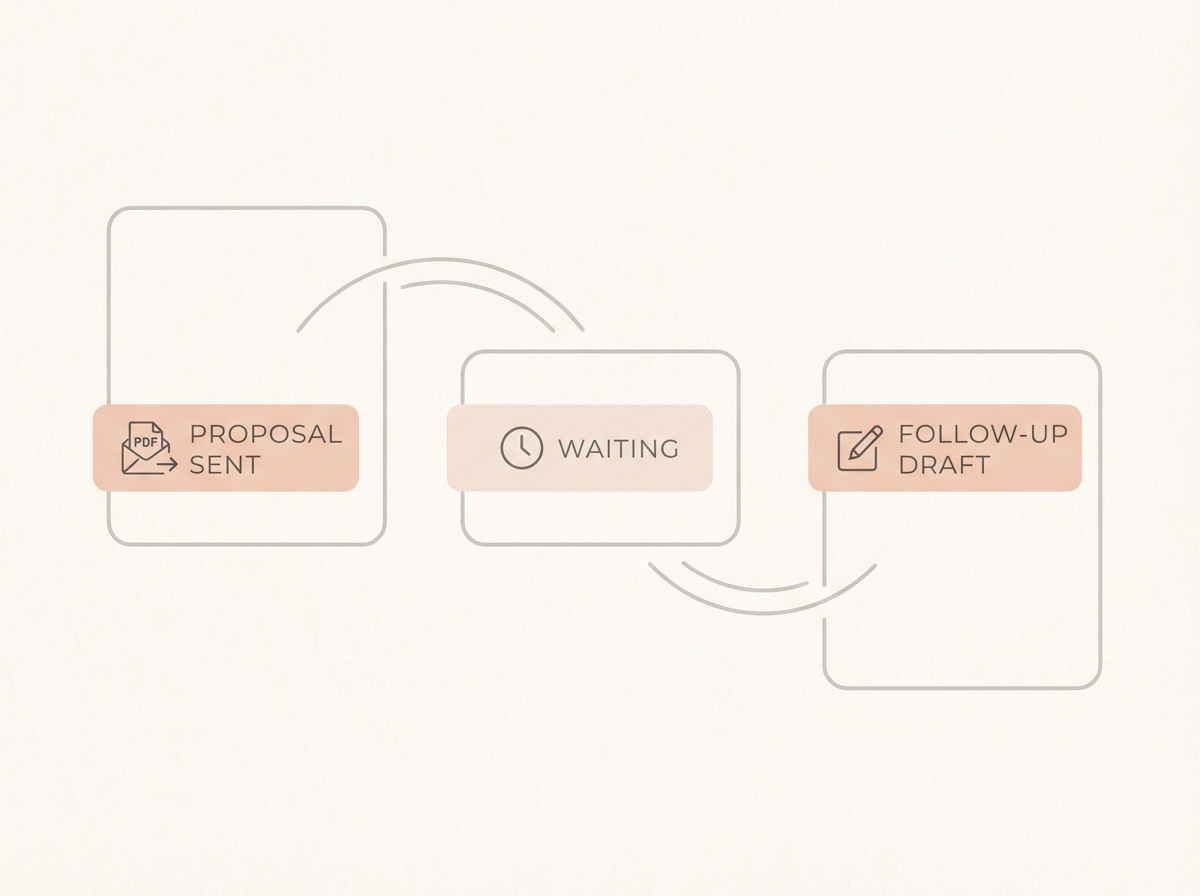
Speed-first approach: You send the PDF and set a calendar reminder for Thursday to "check in." Thursday comes, you're in back-to-back meetings, and you snooze the reminder until Monday. Waiting-label approach: You send the proposal, hit the "Waiting" label, and forget about it. On Thursday morning, a perfectly phrased follow-up draft is waiting for your "Send" click. Trade-off: You lose the "manual touch" of deciding exactly when to nudge, but you gain 100% consistency. Moment of failure: The lead replies via LinkedIn instead of email. Moment of leverage: Jace reads the specific pricing tiers in your attached PDF to reference them in the follow-up. Limitation: Jace cannot verify if the lead opened the PDF, only that they haven't replied to the thread.
2. Vendor/Invoice + NET-30
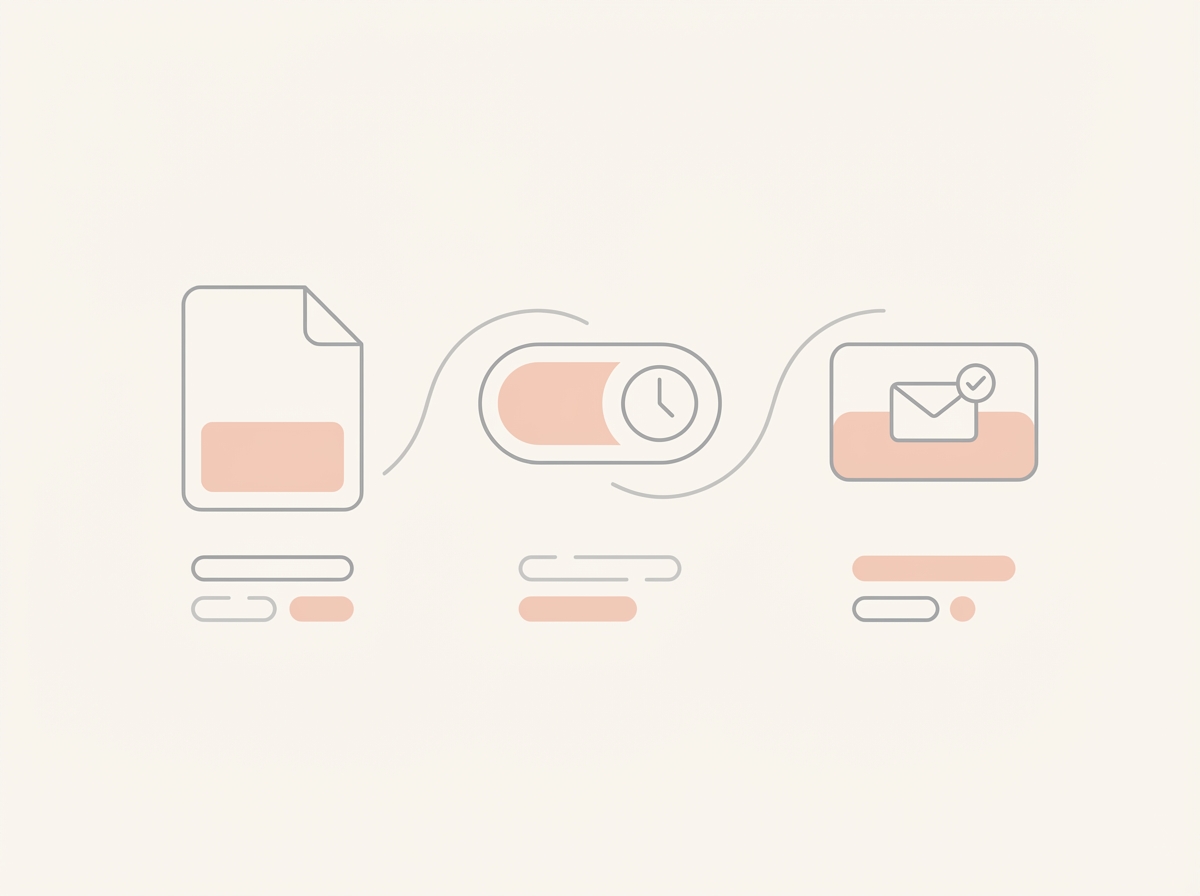
Speed-first approach: You archive the sent invoice and hope your accounting software flags it. Waiting-label approach: Apply "Waiting" to the invoice thread. If the vendor hasn't confirmed receipt or payment status in 3 days, Jace prepares a soft check-in. Trade-off: Requires the discipline to label the email at the moment of sending. Moment of failure: The vendor pays but doesn't reply to the email. Moment of leverage: You avoid the "awkward" manual drafting of a payment nudge; you just approve a neutral, professional draft. Limitation: Jace cannot access your bank or Stripe account to verify payment; it only reads the email thread.
3. Hiring Interview Confirmation
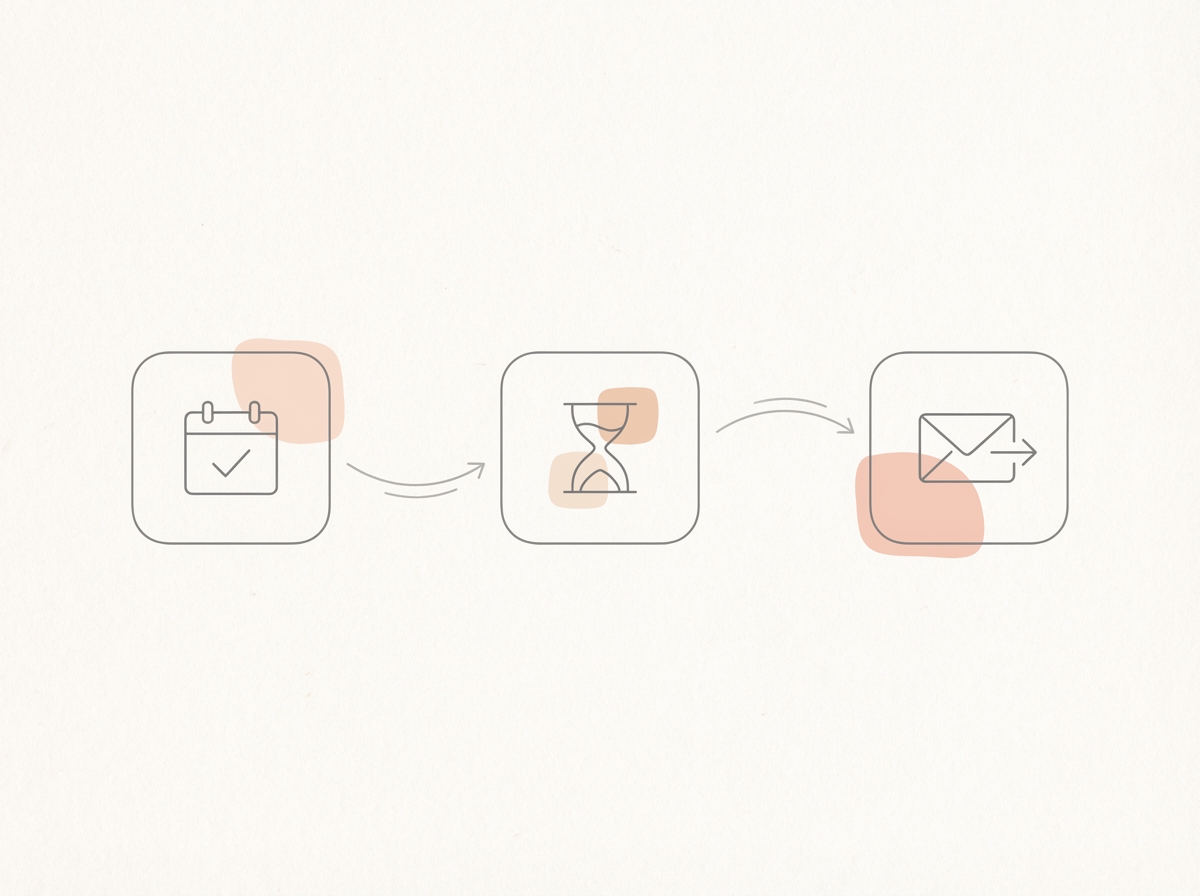
Speed-first approach: You send the invite and check your calendar daily to see if they've accepted. Waiting-label approach: Label the confirmation "Waiting." If the candidate is ghosting the invite, Jace prepares a gentle nudge to ensure they received the details. Trade-off: 3 days might be too long for a fast-moving hiring cycle. Moment of failure: The candidate accepts the calendar invite but doesn't reply to the email (Jace may still draft a nudge). Moment of leverage: Maintains a high-touch candidate experience without the founder's manual time. Limitation: Jace cannot see the status of the Google Calendar invite, only the email thread.
When This Is a Good Fit
If this is you: You are a founder who feels like 20% of your day is spent "checking in" on people. You have a high volume of threads that involve attachments (PDFs, Docs) and you need a system that respects your "review-first" preference. You don't want an AI to talk for you; you want it to prepare the conversation for you.
When This Is NOT a Good Fit
This system is not a fit for founders who require complex, multi-step sequences (e.g., "If no reply in 3 days, send X; if no reply in 7 days, send Y"). It is also not suitable for those who need custom timing per email, as the current logic is centered on a standard 3-day window. If your workflow depends heavily on real-time data from external finance or CRM systems, a label-based email agent will be a supplement, not a replacement.
FAQ
Does it send emails automatically? No. Jace operates on a review-first posture. It is an opt-in, label-based system that creates drafts for your approval. You must manually approve or edit every email before it is sent.
Do I need to switch from Gmail/Outlook? No. Jace works on top of your existing provider. You can even use the Chrome extension to manage everything directly within the Gmail interface.
What exactly triggers the follow-up draft? The trigger is the combination of the "Waiting" label being applied to a sent message and a 3-day period passing without a reply in that thread.
Where do drafts show up? By default, they appear in the Jace UI. You can also enable a setting to have them sync directly into your Gmail or Outlook Drafts folder.
Can I change the 3-day timing? The current system uses a standard 3-day window for follow-up logic. for any custom timing capabilities.
Does it stop if someone replies? Jace reads the full thread context to inform the draft. on the exact stop-conditions for draft generation if a reply arrives at the 71st hour.
How does it use thread context and attachments? Jace reads up to 3 years of history and current thread replies. It can parse PDFs, Docs, and images to ensure the follow-up draft references the actual content of your proposal or invoice.
How do I keep tone consistent? You can use voice presets or paste samples of your previous emails into Jace to ensure the drafts mimic your specific phrasing and professional style.