TL;DR
Most teams lose tasks because email hides who owns what and when it's due. This post shares a practical email-to-task template that captures context, decisions, action items, and next steps in under 60 seconds, plus a safe workflow to run it with Jace without switching tools or risking auto-send mistakes.
Why Emails Become Invisible Work
Email isn't built for execution. It's built for conversation. That's why action items disappear.
The typical email has a clear question at the top but buries three decisions, two deadlines, and a PDF requirement in paragraph four. By the time you've read it, you've forgotten who was CC'd, when the client needed feedback, and whether you already forwarded the attachment to legal.
The result? You copy-paste fragments into your task tool, lose half the context, and either duplicate work or miss the follow-up entirely.
The friction isn't about intelligence. It's about structure. Email threads don't surface:
- Who owns the next step
- When it's actually due
- What was decided vs. what's still open
- What will block progress if you don't act now
So tasks either live in your head (risky), get copied into three different tools (slow), or stay buried in threads you'll never re-read (invisible).
The Only Email-to-Task System That Actually Holds Up
The solution isn't another tool. It's a format that forces every email into the same execution-ready shape, every time.
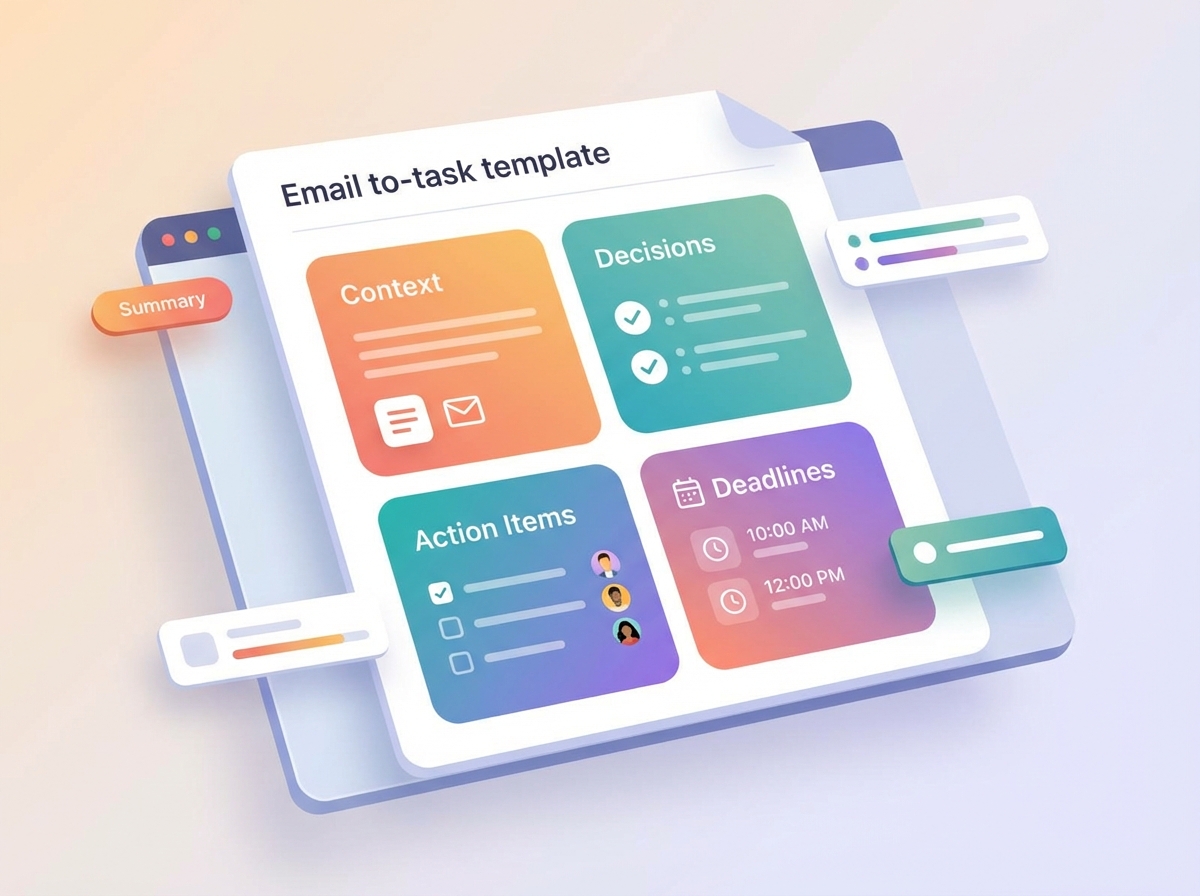
The format below takes any thread and outputs five sections that answer the only questions that matter:
- What's this about? (Context)
- What's locked in? (Decisions)
- Who does what by when? (Action Items)
- What could stop us? (Risks / Blockers)
- What needs an answer next? (Next Step Question)
This structure works because it separates what happened (decisions) from what needs to happen (action items). Most people mix these together, which is why tasks slip.
It also works because it forces you to name an owner and a deadline. If you can't fill those fields, you don't have a task. You have a wish.
The Email-to-Task Template
Copy this. Use it every time you read an email that requires follow-up.
Context: One sentence. What is this about and why does it matter?
Decisions: Bullet list. What's been agreed, approved, or locked in?
Action Items: Format: [Owner] - [Task] - [Deadline]
- Sarah - Finalize vendor contract - Feb 28
- Mark - Review legal redlines - Feb 25
- You - Send updated timeline to client - Feb 24
Risks / Blockers: What could delay or derail this? Missing approvals, unclear scope, dependency on another team.
Next Step Question: The one thing you need to decide or confirm before the next action item can start.
Three Examples You Can Steal
Example 1: Client Request with Attachment
Inbound email: Client sends a PDF spec, asks for timeline and pricing, CCs their VP.
Email-to-Task Output:
Context: Enterprise client needs pricing and delivery estimate for Q2 implementation.
Decisions:
- Scope confirmed to Phase 1 only (modules A, B, C)
- VP approval required before March 1
Action Items:
- You - Review PDF spec and confirm technical feasibility - Feb 23
- Finance - Draft pricing proposal - Feb 25
- You - Send proposal to client with timeline - Feb 26
Risks / Blockers: PDF mentions "integration with legacy system" but no API docs provided. May need discovery call.
Next Step Question: Do we have API access, or do we need to schedule a technical kickoff first?
Example 2: Internal Handoff with Multiple CCs
Inbound email: Product manager hands off a feature request to engineering. CCs design, marketing, and the customer success lead who surfaced the request.
Email-to-Task Output:
Context: Customer Success escalated feature request from top-tier client; Product validated it fits Q1 roadmap.
Decisions:
- Feature approved for Sprint 8
- Design to deliver mocks by Feb 28
- Engineering estimates 2 weeks post-design
Action Items:
- Design - Create UI mocks and user flow - Feb 28
- Engineering - Review mocks and confirm feasibility - Mar 2
- Marketing - Draft release note copy - Mar 10
- You - Update client on timeline - Feb 24
Risks / Blockers: Client expects delivery by March 15. Engineering timeline shows March 16 best case. May need to reset expectations.
Next Step Question: Do we commit to March 15 or proactively give the client a March 18 estimate with buffer?
Example 3: Scheduling + Next Steps (Calendar + Approval)
Inbound email: Partner proposes a strategy call, suggests three time slots, mentions they'll send a deck beforehand.
Email-to-Task Output:
Context: Partner wants to align on co-marketing strategy for Q2 launch.
Decisions:
- Call scheduled for Feb 26, 2pm (confirmed via calendar draft)
- Partner to send deck 24 hours in advance
Action Items:
- You - Confirm calendar invite - Feb 22
- Partner - Send strategy deck - Feb 25
- You - Review deck and prep internal questions - Feb 25
- Marketing - Join the call with positioning input - Feb 26
Risks / Blockers: No agenda yet. If the deck doesn't arrive by Feb 25, we're walking in blind.
Next Step Question: Should we send a pre-call agenda now, or wait for their deck?
How To Run This With Jace
Jace sits between your inbox and execution. It reads the full thread, extracts what matters, and produces decision-ready drafts you approve in one click.
Here's the workflow:
1. Label threads that need action
Apply the "Needs Reply" label to any email that requires follow-up. Jace reads the thread, pulls in attachments (PDFs, .docx, images), and drafts a reply shaped by your instructions.
2. Add a rule for task-ready summaries
Create a rule like:
"When summarizing threads, always output: Context / Decisions / Action Items with owner and deadline / Risks or Blockers / Next Step Question."
Rules shape behavior. They don't auto-apply labels or auto-send. They tell Jace how to structure drafts and summaries.
3. Review before you send
Jace operates review-first by default. Every draft waits for your approval. Verify recipients, dates, amounts, and commitments before you hit send. Auto-send exists but is opt-in per label, and you control it.
4. Use "Waiting" to follow up automatically
After you send, label the thread "Waiting." If the recipient hasn't replied in 3 days, Jace drafts a follow-up. You review it, adjust if needed, and send.
5. Calendar drafts for scheduling
If the email involves scheduling, Jace drafts a calendar event with attendees, time, and meeting link. You approve it, and invites go out. No back-and-forth, no copy-pasting time zones.
What this eliminates:
- Switching between inbox and task tool to copy-paste
- Re-reading threads to remember what was decided
- Forgetting to follow up because you labeled it "read" and moved on
- Accidentally double-booking or sending invites to the wrong people
What you still control: Everything. Jace produces drafts. You approve them. If a deadline looks wrong, a recipient shouldn't be included, or a follow-up isn't needed, you delete the draft or adjust it.
Common Mistakes
Mistake 1: Treating "reply drafted" as "task captured"
Drafting a reply doesn't mean you've logged the task. If the action item is yours and it's three days out, it won't surface again unless you put it somewhere.
Instead: Copy the Action Items section into your task system, or set a "Waiting" label so Jace reminds you if you don't hear back.
Mistake 2: Skipping the "owner" field
"Someone needs to review the contract" isn't a task. It's a hope.
Instead: Name a person. If it's ambiguous, your Next Step Question should be "Who owns contract review?"
Mistake 3: Using "ASAP" as a deadline
ASAP means nothing. It gets trumped by everything with a real date.
Instead: If the deadline isn't clear, ask for one. If you're the one setting it, pick a date and communicate it.
Mistake 4: Burying action items in the reply
If your draft says "Let me look into that and get back to you," you've created invisible work. The recipient has no idea when you'll reply, and you have no forcing function to actually do it.
Instead: State the action item and deadline in the email. "I'll review the contract and send feedback by Feb 25."
Mistake 5: Auto-sending without review
Auto-send is powerful but risky. If Jace misreads a date, pulls the wrong recipient from a CC line, or drafts a commitment you can't keep, you've just sent it.
Instead: Use review-first until you've tested the workflow. Turn on auto-send only for labels where the stakes are low (like "FYI" acknowledgments).
FAQ
Q: Can Jace automatically create tasks in my task management tool? Not directly. Jace produces decision-ready drafts and actionable summaries that you can paste into your task system. It helps you structure tasks with clear owners and deadlines, but it doesn't write to third-party tools automatically.
Q: What if the email doesn't have a clear owner or deadline? Then you don't have a task yet. Use the Next Step Question to clarify ownership or deadline before committing to action. If you skip this step, the task will slip.
Q: Does Jace work with Outlook? Yes. Jace works on top of Gmail and Outlook via web app. For Gmail users, there's also a Chrome extension.
Q: How do I stop forgetting to follow up? Label threads "Waiting" after you send. If there's no reply in 3 days, Jace drafts a follow-up. You review and send.
Q: What if Jace drafts the wrong response? Delete the draft or edit it. Jace operates review-first by default. Nothing sends without your approval unless you've turned on auto-send for that specific label.
Q: Can I use this workflow without Jace? Yes. The email-to-task template works with any email client. You'll just be doing the extraction and formatting manually. Jace speeds it up by reading threads, pulling attachments, and structuring output based on your rules.
Q: How far back does Jace read in a thread? Jace reads the full thread, including quoted replies, and imports up to 3 years of email history. It pulls context from earlier messages so you don't have to re-explain background.
Stop Losing Tasks in Your Inbox
Most productivity advice tells you to "process your inbox faster." That's not the problem. The problem is that email doesn't tell you who owns what or when it's due.
The email-to-task template forces structure. Jace applies that structure automatically, producing decision-ready drafts and summaries you approve in one click.
If you're tired of re-reading threads, copy-pasting action items, and losing follow-ups, try Jace for review-first inbox workflows at jace.ai.