TL;DR
Your team makes decisions in email. Those decisions should live in Notion. The gap between the two is usually filled with manual copy-paste, formatting cleanup, and the quiet hope that someone remembers to do it. A better approach: let an AI assistant read the full thread, draft your reply, and propose a Notion write action you can approve or reject before anything is written. You stay in control. Your knowledge base stays current.
 From scattered threads to structured knowledge.
Why Knowledge Stays Trapped In Email
A product manager approves a spec change in a reply buried three weeks deep in a thread. A client confirms a delivery date in a forwarded message. A vendor sends the final pricing PDF as an attachment to a thread that started with a different subject line entirely.
These moments matter. They represent decisions, commitments, and context that teams need to reference later. But email was never designed to be a knowledge base. It was designed to be a communication channel.
The result is predictable. When someone needs to know what was agreed, they search their inbox. When that fails, they ask the person who was on the thread. When that person is unavailable or has left the company, the decision is effectively lost. It might still exist somewhere in a mail server, but it is no longer accessible knowledge.
Teams try to solve this with discipline. They create rules: "Always summarize decisions in Notion after a call." "Always update the tracker when a vendor confirms." These rules work for a week, maybe two. Then a busy week happens, and the backlog grows. Then the backlog becomes too large to address, and the rule quietly dies.
The problem is not discipline. The problem is friction. Moving context from email to Notion requires reading the thread, identifying what matters, formatting it correctly, and placing it in the right location. That is real work. It competes with everything else on the to-do list. It usually loses.
 Knowledge stays siloed when the transfer requires too much effort.
What A Good Email To Notion Workflow Must Preserve
Before automating anything, it helps to define what you are actually trying to capture. Not everything in an email thread belongs in a knowledge base. But certain elements almost always do.
Decision history. What was agreed, and when. This is the core value. A knowledge base that cannot answer "what did we decide about X?" is not doing its job.
Stakeholders. Who approved, who was consulted, who needs to be informed. Decisions without attribution are difficult to revisit. When priorities change, you need to know who has the authority to change the decision.
Dates and deadlines. When something was agreed, when it is due, when it was last updated. Time context prevents confusion and enables follow-up.
Attachments and versions. The proposal, the contract, the spec. Often the most important artifact in a thread is not the text but the file attached to it. A good workflow captures which version was referenced and when.
Current status and next step. Is this decision finalized or still pending? What needs to happen next? A knowledge base entry without status is a snapshot that ages quickly.
These five elements form a minimum viable knowledge entry. Any workflow that does not preserve them is creating incomplete records.
The Review First Email To Notion Workflow
A review-first workflow means nothing is written to Notion until you approve it. This is important. Automated writes to a shared knowledge base without human oversight create messes that are harder to clean up than manual entry.
The practical flow works like this:
Step one: The assistant reads the full thread. This includes quoted replies, forwarded messages, and attachments. PDFs, Word documents, images, and text files are all readable. The assistant understands context across the entire conversation, not just the most recent message.
Step two: The assistant drafts a reply. If a response is needed, you see a draft you can edit, approve, or discard. This is the review-first default. Nothing sends without your confirmation.
Step three: The assistant proposes a Notion write action. This might be creating a new page, updating an existing page, or adding an entry to a database. The proposal includes the specific content that will be written. You see exactly what will change before anything changes.
Step four: You approve. Only after approval does the write happen. If the proposal is wrong, you edit it or reject it. The assistant learns from your corrections over time.
Step five: Optionally, label the thread for follow-up. After sending, you can apply a label that triggers follow-up behavior. If no response arrives within a few days, a follow-up draft appears for your review. This keeps threads from slipping through the cracks.
This workflow respects a simple principle: automation should reduce effort, not reduce control. The assistant does the reading and formatting. You make the decisions about what gets written and where.
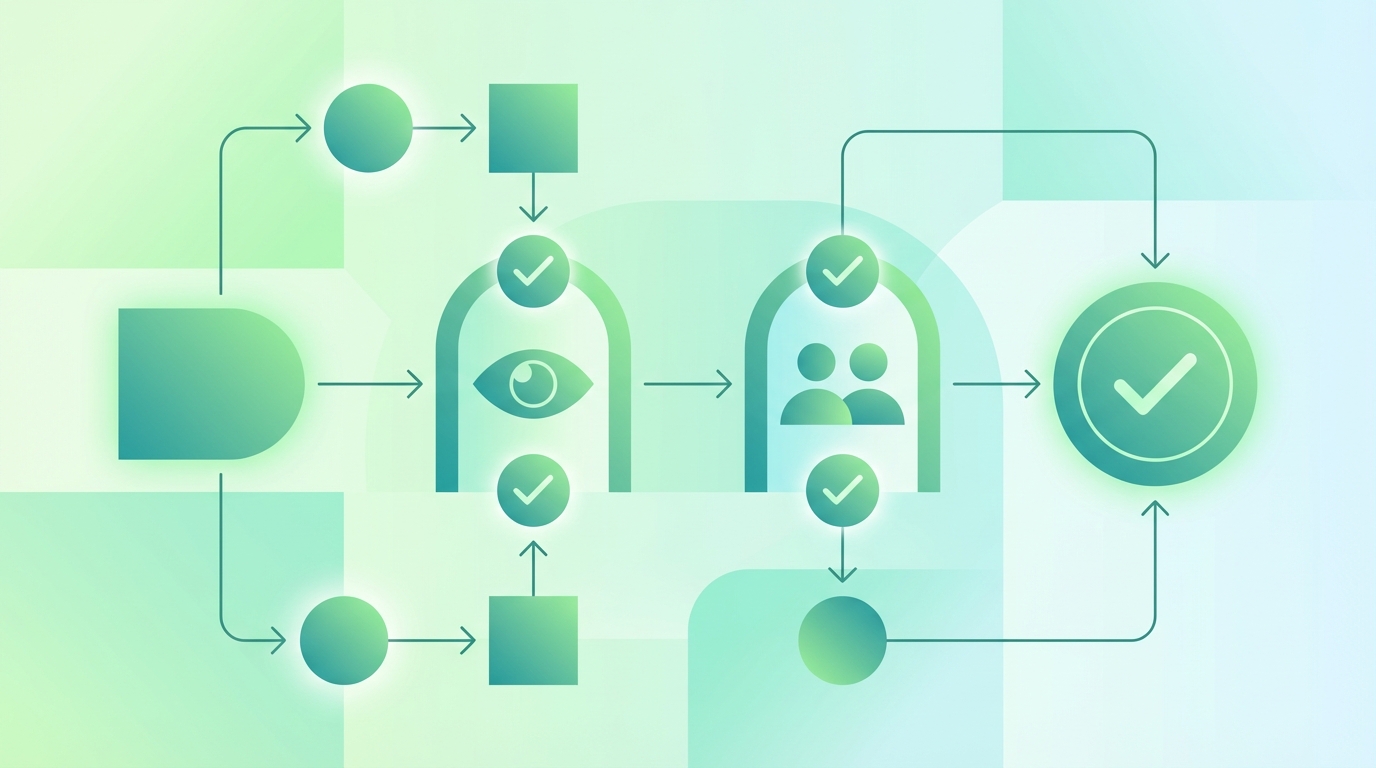 Every write action passes through human review.
The Notion Update Packet Template
When the assistant proposes a Notion write, it helps to have a consistent structure. The following template can be adapted to your team's needs. It covers the essential elements while remaining flexible enough for different use cases.
## Source Thread
- Subject: [Thread subject line]
- Date range: [First message date] - [Last message date]

## Context Summary
- [One-sentence summary of what the thread is about]
- [Key background needed to understand the decisions]
- [Any relevant prior context or related threads]

## Decisions
- [Decision 1: what was agreed]
- [Decision 2: what was agreed]
- [Add more as needed]

## Open Questions
- [Question 1: what remains unresolved]
- [Question 2: what needs clarification]

## Action Items
- [ ] [Action description] - Owner: [Name] - Due: [Date]
- [ ] [Action description] - Owner: [Name] - Due: [Date]

## Risks / Notes
- [Any concerns, dependencies, or caveats]
- [Context that might matter later]

## Referenced Attachments
- [Document name and version, brief description of contents]
- [Document name and version, brief description of contents]
This structure separates decisions from action items, which is critical. A decision is what was agreed. An action item is what someone needs to do about it. Mixing these creates confusion during later review.
The template also separates open questions from decisions. A thread often contains both resolved and unresolved items. Capturing the open questions prevents false confidence that everything is settled.
Three Use Cases
Client Call Follow-Ups to Notion Meeting Notes Database
The moment of failure. A sales call ends with three commitments: a revised proposal by Friday, a technical call next week, and a pilot timeline to discuss. The rep sends a follow-up email summarizing these points. The client replies with a clarification. The rep responds. Two weeks later, the rep is on vacation and a colleague needs to know what was promised. The email thread exists, but finding it and extracting the commitments takes twenty minutes.
The moment of leverage. After the call, the rep writes the follow-up email as usual. The assistant drafts the reply and simultaneously proposes a new entry in the Notion meeting notes database. The entry includes the date, attendees, commitments, and next steps. The rep reviews both, approves, and moves on. When the colleague needs context, the Notion entry takes thirty seconds to find.
The trade-off. The rep spends an extra minute reviewing the Notion proposal. This is real overhead. For teams with high call volume, the cumulative time adds up. The benefit must outweigh this cost, which depends on how often context is needed later.
Vendor Agreements to Notion Contracts Tracker
The moment of failure. A vendor confirms pricing in an email attachment. The operations lead saves the PDF locally and plans to update the contracts tracker later. Later never comes. Six months on, the company is renewing and no one can find the original terms. The vendor claims the price was different. There is no authoritative record.
The moment of leverage. When the vendor sends the confirmation, the assistant reads the attachment and proposes an entry in the Notion contracts tracker. The entry includes the vendor name, effective date, pricing summary, renewal terms, and a reference to the attached PDF. The operations lead reviews and approves. When renewal comes, the terms are documented and findable.
The trade-off. The assistant's summary of the PDF may miss nuances. Legal or financial terms may require human interpretation. The Notion entry is a reference, not a replacement for reading the actual document when precision matters.
Internal Decisions to Notion Decision Log
The moment of failure. Engineering and product debate a technical approach across a long email thread. Eventually, consensus emerges: approach B with a modification. The thread ends. No one writes it down. Three months later, a new engineer asks why approach A was not used. No one remembers the reasoning. The debate happens again.
The moment of leverage. When the thread concludes, the assistant proposes an entry in the Notion decision log. The entry captures the options considered, the decision made, the reasoning, and who was involved. When the question comes up later, the answer is documented. The team moves forward instead of backward.
The trade-off. Not every email thread contains a decision worth logging. Over-documentation creates noise. The reviewer must judge whether each proposed entry is worth keeping. This judgment takes attention.
Rules That Keep Your Knowledge Base Clean
Natural-language rules shape how the assistant behaves when acting. They do not trigger Notion writes automatically, but they standardize what gets proposed and how. Here are six examples:
1. Always include the source thread subject and date range in Notion entries. This makes the entry traceable. If someone needs more context, they can find the original thread.
2. Separate decisions from action items in every Notion proposal. A decision is what was agreed. An action item is what someone needs to do. Never combine them in a single bullet.
3. Every action item must have an owner and a deadline. Action items without owners do not get done. Action items without deadlines do not get done on time. Require both.
4. Use consistent naming for Notion pages: [Date] - [Topic] - [Status]. This makes the knowledge base scannable. When every page follows the same pattern, finding information is faster.
5. Do not include raw email text in Notion entries. Summarize, do not copy-paste. Raw thread text is hard to read and harder to search. The value of the knowledge base is in the synthesis.
6. Flag entries with open questions as "Pending" until resolved. This prevents false confidence. A page marked "Pending" signals that follow-up is needed. A page without that flag should be authoritative.
These rules create consistency without requiring manual enforcement. The assistant follows them when proposing writes, and you see the result before approval.
Common Mistakes
Dumping raw thread text into Notion. Instead: Summarize the key points. A Notion entry should be readable in thirty seconds. If it takes five minutes, it is not useful.
Creating entries without owners. Instead: Every action item needs a name attached. "We should follow up" is not an action item. "Sarah will follow up by March 10" is.
Creating entries without deadlines. Instead: If something matters enough to document, it matters enough to schedule. No deadline means no accountability.
Mixing decisions and open questions. Instead: Separate them clearly. A decision is resolved. An open question is not. Mixing them creates confusion about what is settled.
Approving Notion writes without checking the stakeholder list. Instead: Verify that the right people are attributed. A decision log that misattributes decisions is worse than no log at all.
Creating duplicate entries instead of updating existing ones. Instead: Before approving a new page, check if an existing page should be updated. The assistant can update pages, not just create them.
FAQ
How do I turn email threads into Notion pages? Connect Jace to your email and Notion. When you receive or send a thread that contains knowledge worth preserving, the assistant can propose a Notion write action. You review the proposal and approve if it looks correct. The page is created or updated in Notion.
How do I keep a decision log from email? Create a decision log database in Notion. When email threads contain decisions, the assistant can propose entries to that database. Each entry captures what was decided, who was involved, and when. You approve each entry before it is written.
Do I have to switch from Gmail or Outlook? No. Jace works on top of Gmail and Outlook. For Gmail, there is both a web app and a Chrome extension. Your email stays where it is. The assistant reads from it and proposes actions you can approve.
How does approval work? Every write action is a proposal. You see exactly what will be written to Notion before it happens. You can approve, edit, or reject. Nothing is written until you confirm. This is the review-first default.
Can Jace read attachments in email threads? Yes. Text-based PDFs, Word documents, images, and text files are all readable. The assistant can reference attachment content when proposing Notion entries.
Does this work for updating existing Notion pages, or only creating new ones? Both. When connected and authorized, Jace can create new pages, update existing pages, and add entries to databases. The specific action is proposed for your review before it executes.
What if the assistant proposes something incorrect? Edit or reject the proposal. The assistant learns from corrections over time. Review-first means you always have the final say.
How do I prevent duplicate entries in Notion? Review each proposal before approving. If an existing page should be updated instead of creating a new one, you can modify the proposed action or reject it and request an update instead.
Ready To Build Your Knowledge Base From Email?
If your team's decisions live in email but belong in Notion, a review-first workflow can close the gap without adding manual work. Jace reads the threads, drafts the replies, and proposes the Notion writes. You approve what makes sense and skip what does not. Try it at jace.ai.
 A knowledge base that stays current without manual entry.