Folders vs Labels: The Only Inbox Structure That Scales
You've tried both.
You spent a weekend building a folder hierarchy: Clients, Vendors, Legal, Urgent. You dragged 400 emails into those folders. Two weeks later, you're clicking through six nested folders to find a thread you already read twice, and you still don't remember what decision you need to make.
So you switched to labels. You tagged everything. "High Priority," "Waiting on X," "Contract," "Invoice," "Follow Up." Three months later, you have 47 labels, 14 of them unused, and you're still manually scanning threads to figure out what happens next.
The problem isn't folders or labels. The problem is treating either one as the system itself.
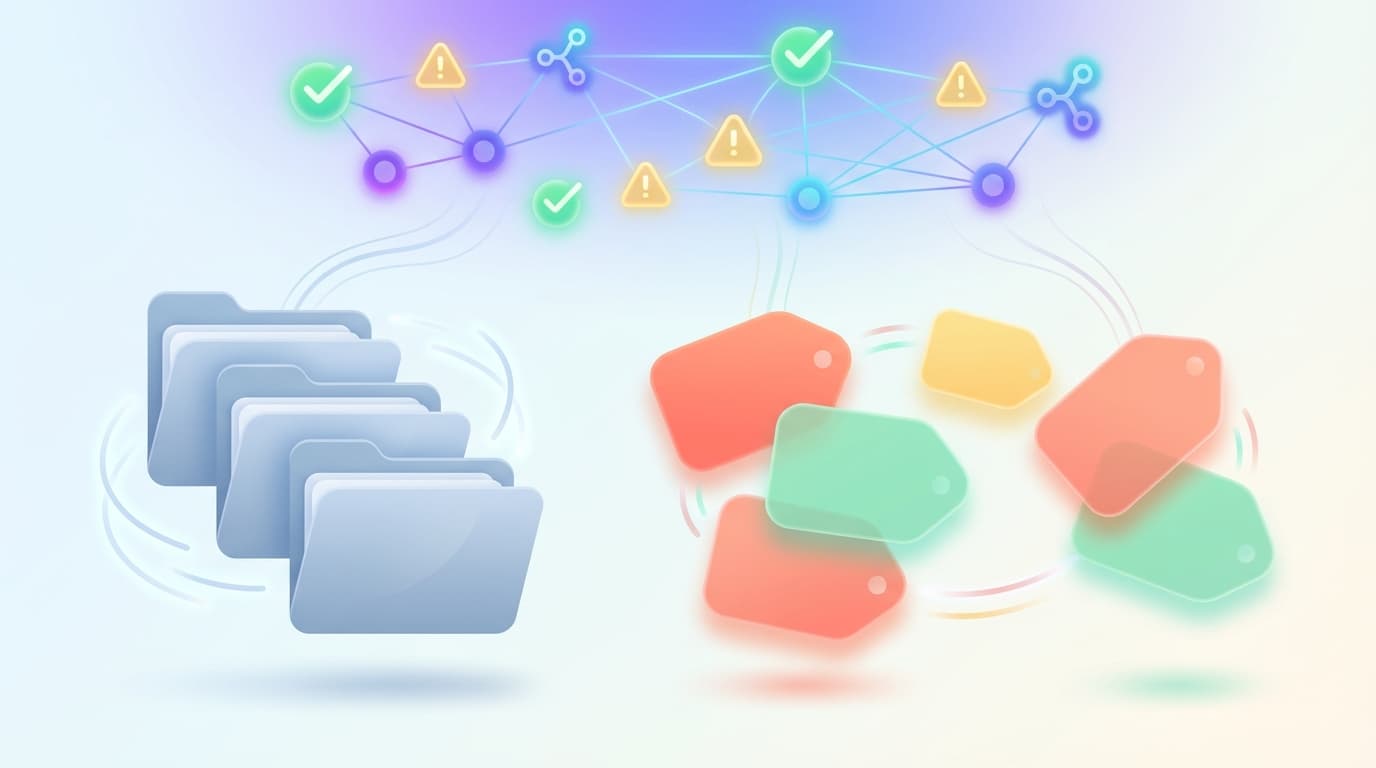
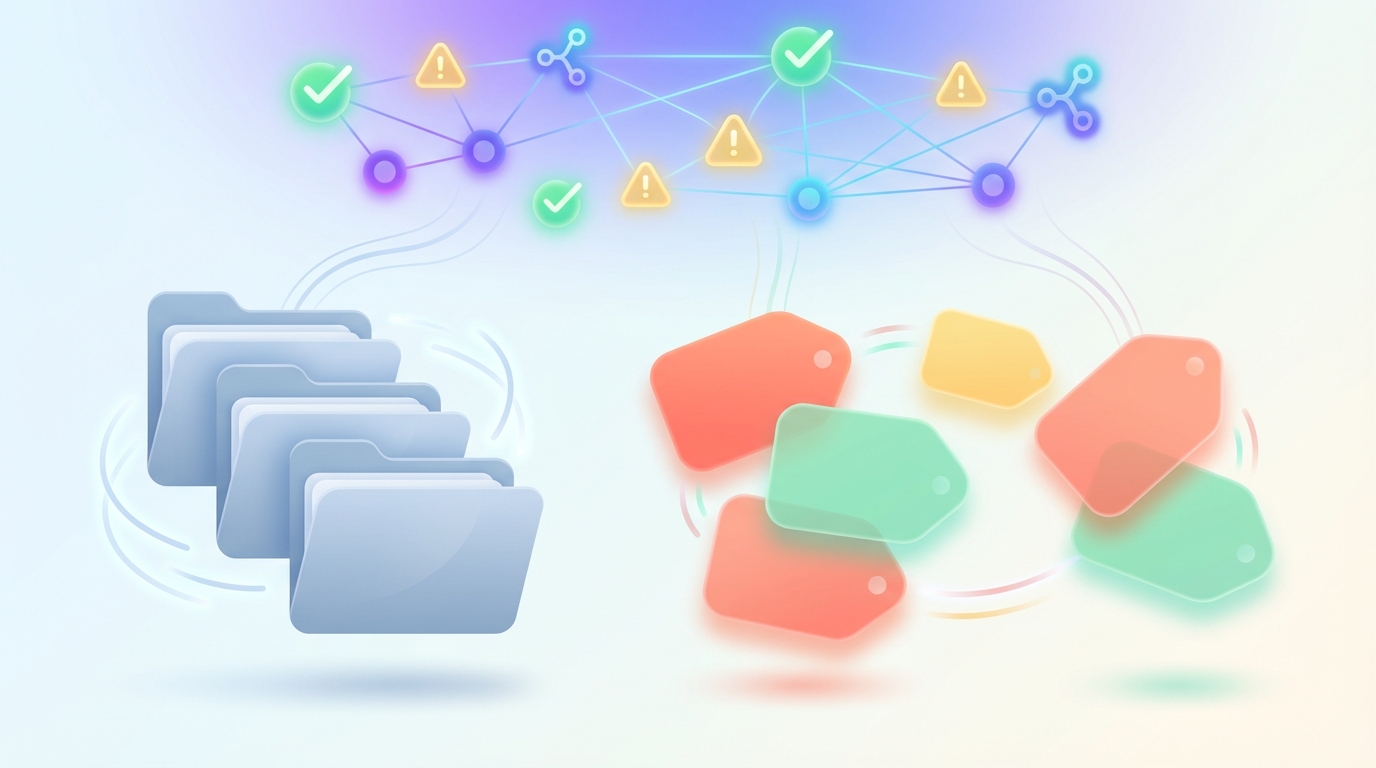
Folders and labels are signals. They tell you what something is or where it lives. They don't tell you what to do, who owns it, what's at risk, or what decision is blocking forward progress. They are inputs to a decision system, not the system.
TL;DR
Why folders fail at scale:
- They are static containers, not decision engines.
- They hide threads instead of surfacing the ones that matter.
- They fragment context by separating emails that belong to the same deal or project.
Why labels also fail when used as the primary system:
- Label explosion creates taxonomy debt: inconsistent tagging, overlapping categories, and drift across teams.
- Labels describe what an email is, not what you should do with it.
- Manual tagging doesn't scale past 50 emails a day.
The scalable model:
- Your inbox is a decision system, not an archive.
- Folders and labels become lightweight signals, not the organizing logic.
- The real system is context, history, stakeholder mapping, risk identification, and decision-ready output.
- An inbox agent layer uses those signals to prepare drafts, surface gaps, and close loops without you manually reconstructing every thread.
Why Folders Fail at Scale
Folders work fine when your inbox is 30 emails a week and every message maps cleanly to a single project. The moment your volume rises or your role touches multiple domains (sales, operations, support, legal, finance), folders break.
Folders Hide Work Instead of Surfacing It
Folders are designed to archive. You file an email into "Vendor Contracts" and it disappears from your inbox. That's the point. But disappearing doesn't mean resolved.
You have a vendor contract sitting in a folder. It has three attachments. One is the signed version. One is a revised scope. One is a payment schedule with a due date that passed yesterday. The folder doesn't tell you that. It just tells you the email exists somewhere under "Vendor Contracts."
You open the folder. You see 38 threads. You don't remember which one has the due date. You open four threads before you find it. By then, you've lost the surrounding context: who approved the change, whether the payment was sent, and whether anyone followed up.
Folders turn triage into archaeology.
Folders Fragment Context and Ownership
A single deal touches sales, legal, and finance. You get 12 emails across three different threads. If you're using folders, where do those emails go?
You could put them all in "Active Deals," but then that folder becomes a dumping ground. You could split them across "Sales," "Legal," and "Finance," but now the context is fragmented across three locations. You'll miss replies because you're only checking one folder.
Worse, you don't know who owns the next step. The thread is in "Legal," but legal already approved it. The actual blocker is a finance signature. The folder doesn't tell you that. You waste 20 minutes reading threads you don't need to touch.
Folders Are Static Containers, Not Decision Systems
A folder is a label with hierarchy. It doesn't adapt. It doesn't flag gaps. It doesn't surface the thread that's been silent for five days even though you're waiting on a $50,000 contract approval.
You still have to remember what's in there, why it matters, and what happens next.
Why Labels Also Fail When Used as the Primary System
Labels feel like an upgrade. You can apply multiple labels to a single thread. You can color-code them. You can filter your inbox by label and see exactly what's tagged "Urgent" or "Waiting."
But once your inbox exceeds 50 emails a day or you're managing more than one domain (sales pipeline, vendor coordination, customer support escalations, hiring), labels start to break in predictable ways.
Label Explosion and Taxonomy Debt

You start with six labels. Within three months, you have 40. Some are redundant ("High Priority" vs "Urgent"). Some overlap ("Contracts" vs "Legal" vs "Vendor Agreements"). Some are abandoned ("Q3 Planning").
This is taxonomy debt. Every time you open an email, you have to decide which labels apply. You have to remember what "Follow Up 2" means versus "Follow Up Later." You have to reconcile the fact that your sales lead uses "Hot Lead" and you use "Priority Deal" for the same thing.
Labels tell you what category something belongs to. They don't tell you what decision is pending, who owns the next step, or what happens if no one replies.
Labels Describe, They Don't Decide
You label a thread "Waiting on Client." That's useful. But waiting for what? A signature? A decision? Payment? A calendar invite?
You label a thread "Urgent." Urgent why? Because there's a hard deadline? Because a client is angry? Because legal flagged a liability risk?
Labels are metadata. They're not instructions. You still have to open the thread, read the last four messages, check the attachments, and figure out what the situation actually is.
Manual Tagging Doesn't Scale
Tagging takes discipline. You have to remember to apply labels consistently. You have to check threads after replies to update labels. You have to retag when context changes.
Most people don't. Most people label sporadically, rely on memory for the rest, and end up with an inbox where 60% of threads have no labels, 30% are mislabeled, and 10% are tagged correctly but still require manual review to understand the actual status.
The Scalable Model: Inbox as a Decision System
The inbox that scales isn't organized by folders or labels alone. It's organized by logic: what decision is pending, who owns it, what's at risk, and what happens next.
Folders and labels become signals. They tell the system what kind of email it is. The system itself handles context, surfaces gaps, and prepares output.
Separate "Signal" from "Logic"
Signals are folders and labels. They're lightweight tags that describe the nature of the email: "Needs Reply," "Waiting," "Contract," "Support Escalation."
Logic is everything else:
- Reading the full thread, including quoted replies
- Identifying stakeholders, commitments, and open questions
- Checking attachments for relevant data (payment terms, due dates, revision history)
- Surfacing gaps (no reply in five days, missing attachment, conflicting information)
- Preparing a decision-ready summary or draft
You apply the signal. The system applies the logic.
How Jace Uses Labels and Rules Without Creating Chaos
Jace works on top of Gmail and Outlook. It doesn't replace your email client. It watches for specific label signals you define, reads the context behind those threads, and prepares drafts or summaries for your review.
Label-triggered drafting: You label a thread "Needs Reply." Jace reads the full conversation, checks attachments, identifies the question or request, and drafts a response. You review, edit if needed, and send. You don't manually reconstruct the thread.
Follow-up discipline via the Waiting label: You send a proposal and label the thread "Waiting." If the recipient doesn't reply within three days, Jace drafts a follow-up for your review. You approve, edit, or discard. You don't rely on memory or a separate CRM to track open loops.
Review-first by default: Jace never sends emails automatically unless you explicitly enable auto-send per label. Every draft lands in a review tray. You approve or edit before anything goes out.
Rules as natural language behavior instructions: Instead of building complex filter logic, you write rules in plain language. "When replying to threads labeled Support Escalation, always include the ticket number and CC the support lead." "When drafting follow-ups for Waiting threads, keep the tone casual for internal emails and formal for client threads." Rules shape drafting behavior, not inbox sorting.
The Anatomy of a Decision-Ready Output

Whether you're using an inbox agent or manually reviewing threads, a scalable system produces the same structure every time. Here's a reusable template:
Thread: [Subject line]
Status: Waiting on client signature / Internal approval pending / Contract sent, no reply
Decision needed: Approve revised payment terms / Send follow-up / Escalate to legal
Risks: Payment deadline is tomorrow / Client mentioned competitor / Attachment version mismatch
Next step: Reply with revised terms / Schedule call / Forward to finance for approval
Owner: You / Sales lead / Finance
This template works for any thread. You can copy it into a doc, use it as a mental checklist, or have your inbox agent generate it automatically.
Real Examples: The Difference in Practice
Example 1: Vendor Invoice with Attachment and Due Date
The folder approach:
You receive an invoice email. You file it into "Vendor Invoices." Two weeks later, you get a late payment notice. You search "Vendor Invoices," find the thread, open the attachment, and realize the due date was 10 days ago. You forward it to finance with an apology.
The label approach:
You label the email "Invoice" and "Due This Month." You plan to check that label weekly. You forget. Same outcome.
The decision system approach:
The email arrives. You label it "Invoice." Your system reads the thread, extracts the due date from the attachment, and surfaces it in your review tray with: "Payment due Feb 18. Vendor: Acme LLC. Amount: $4,200. Owner: Finance." You forward to finance with the attachment. Done.
Example 2: Sales Thread with Follow-Up Gap
The folder approach:
You reply to a prospect with pricing. You file it into "Active Deals." Five days pass. You don't check the folder daily. By the time you remember, the prospect has gone cold.
The label approach:
You label it "Follow Up." You intend to review that label daily. You review it sporadically. Same result.
The decision system approach:
You reply and label the thread "Waiting." Three days pass with no response. A follow-up draft lands in your review tray: "Hi [Name], following up on the proposal I sent last week. Let me know if you have any questions." You approve. The loop closes.
Example 3: Support Escalation with Multiple Stakeholders
The folder approach:
A customer emails support. Support replies. The customer escalates. You get CC'd. You file it into "Support." The thread grows to nine messages. You lose track of who owns the next step.
The label approach:
You label it "Support Escalation" and "Urgent." You still have to open the thread, read nine messages, figure out what's been tried, and determine what happens next.
The decision system approach:
Your system reads the full thread, identifies that the customer is escalating due to a repeated billing error, surfaces the history (three prior tickets, two promises to fix it), and drafts a reply: "I see this is the third time this has happened. I've escalated this to our billing lead [Name], who will reach out directly within 24 hours." You approve. The customer knows you're on it.
Example 4: Scheduling Request with Calendar Constraints
The folder approach:
Someone requests a meeting. You file it into "Scheduling." You check your calendar manually, pick a time, and reply. Two hours later, you realize you double-booked.
The label approach:
You label it "Needs Reply." You still manually check your calendar and reply.
The decision system approach:
You label the thread "Needs Reply." Your system checks your calendar, identifies three open slots that match the constraints mentioned in the email, and drafts: "I'm available Tuesday at 2pm, Wednesday at 10am, or Thursday at 3pm. Let me know what works." You approve.
Comparison Table: Folders vs Labels vs Context Layer
| Capability | Folders | Labels | Context Layer (Jace) |
|---|---|---|---|
| Organize by category | ✓ | ✓ | ✓ (via labels as signals) |
| Apply multiple categories to one thread | ✗ | ✓ | ✓ |
| Surface threads that need action | ✗ | Partial (manual filtering) | ✓ (automatic triage) |
| Read full thread context automatically | ✗ | ✗ | ✓ |
| Extract data from attachments | ✗ | ✗ | ✓ |
| Identify decision blockers | ✗ | ✗ | ✓ |
| Draft replies based on context | ✗ | ✗ | ✓ |
| Follow-up discipline for sent threads | ✗ | ✗ | ✓ (via Waiting label) |
| Review-first control | N/A | N/A | ✓ (default mode) |
| Works on top of Gmail/Outlook | Built-in | Built-in | ✓ |
Implementation: How to Set Up a Scalable Inbox Structure
You don't need to rebuild your inbox from scratch. You can layer decision logic on top of your existing setup in three steps.
Step 1: Reduce Your Label Set to Signals
Audit your current labels. Delete or archive anything that describes a project, a time period, or a one-off category. Keep only labels that describe what action is needed:
- Needs Reply: Incoming threads that require a response.
- Waiting: Sent threads where you're waiting on someone else.
- FYI: Threads you need to read but don't require action.
- Urgent: High-stakes threads with tight deadlines (use sparingly).
Optional category labels (use only if they genuinely change how you draft or triage):
- Contract, Invoice, Support, Scheduling
Your goal: 5 to 8 labels, maximum.
Step 2: Set Up Review-First Drafting
If you're using Jace, connect it to Gmail or Outlook and define which labels trigger drafting:
- Threads labeled "Needs Reply" trigger a draft.
- Threads labeled "Waiting" trigger a follow-up draft after three days of silence.
If you're not using an agent, set up a manual review ritual: every morning, filter your inbox by "Needs Reply" and draft responses in batch. Filter by "Waiting" once per day and manually check for threads that need a nudge.
Step 3: Write Behavior Rules, Not Sorting Rules
Instead of creating filters that move emails into folders, write rules that shape how drafts are prepared:
- "When replying to threads labeled Support, always include the ticket number and keep the tone empathetic."
- "When drafting follow-ups for Waiting threads with clients, wait three days. For internal threads, wait one day."
- "When a thread mentions a contract, check the attachments for payment terms and due dates and include them in the draft."
These rules don't change where emails live. They change how the system interprets them.
Step 4: Close Loops Daily
At the end of each day, your inbox should have:
- Zero threads labeled "Needs Reply" (all drafted, approved, sent)
- All "Waiting" threads tracked (follow-ups queued or scheduled)
- FYI threads read or archived
This doesn't mean inbox zero. It means decision zero: every thread that requires action has a next step locked in.
Workflow Visualization

The scalable inbox workflow is a loop:
- Thread arrives or you send a thread and label it "Waiting"
- Label signal tells the system what action is needed
- Draft tray surfaces prepared replies or follow-ups
- Human approval lets you review, edit, or discard
- Send or schedule follow-up closes the loop
This loop runs continuously. You never manually track what's pending. You never lose a thread in a folder. You never rely on memory.
FAQ
Q: Should I delete all my folders and switch to labels?
Not necessarily. If your folders work for archival (e.g., you file old projects into folders for long-term storage), keep them. Just don't rely on folders as your active decision system. Use labels for threads that need action. Use folders for threads that are done.
Q: How many labels should I actually use?
5 to 8 for most people. If you're managing a team inbox or multiple domains (sales, support, finance), you might need 10 to 12. Beyond that, you're creating taxonomy debt.
Q: What if I'm on a team and everyone uses labels differently?
Define a shared label set and write down what each label means. Use automation to apply labels consistently (e.g., emails from support@company.com automatically get labeled "Support"). If you're using Jace, you can set team-wide rules that shape drafting behavior across the whole group.
Q: Can I use Jace with filters and folders I already have?
Yes. Jace works on top of Gmail and Outlook. It respects your existing filters, folders, and labels. You just add specific labels (like "Needs Reply" or "Waiting") to trigger drafting.
Q: What if I don't want auto-replies?
Jace is review-first by default. Drafts land in a tray. You approve before they send. Auto-send is opt-in per label, not a default.
Q: How does Jace handle attachments?
Jace reads PDFs (text-based), Word docs, images, and text files. It can extract payment terms, due dates, contract clauses, and other relevant data to include in drafts or summaries.
Q: What happens if I miss a follow-up deadline even with a system?
The system drafts the follow-up. You still have to approve it. If you ignore the draft, the loop doesn't close. The difference is you get a prompt instead of relying on memory.
The Bottom Line
Folders hide work. Labels create taxonomy debt. Neither scales on its own once inbox volume and stakes rise.
The inbox that scales uses folders and labels as lightweight signals, not the organizing system itself. The real system is context: reading full threads, identifying decision blockers, surfacing gaps, and preparing decision-ready output.
You can build this manually with discipline and a set of reusable templates, or you can use an inbox agent like Jace to handle the logic layer automatically. Either way, the principle is the same: separate signals from logic, and treat your inbox as a decision system, not an archive.
Try Jace for review-first inbox workflows at Jace.ai.